How to Fix Slow Wi-Fi at Home
Before buying new gear: the placement, interference, and plan checks that solve most slow-Wi-Fi complaints for free.
Slow Wi-Fi has maybe five common causes, and new hardware fixes only some of them. Ten minutes of diagnosis — figuring out whether the problem is your plan, your router's placement, or one misbehaving room — routinely saves a few hundred dollars of unnecessary mesh kit.
First, find out which problem you have
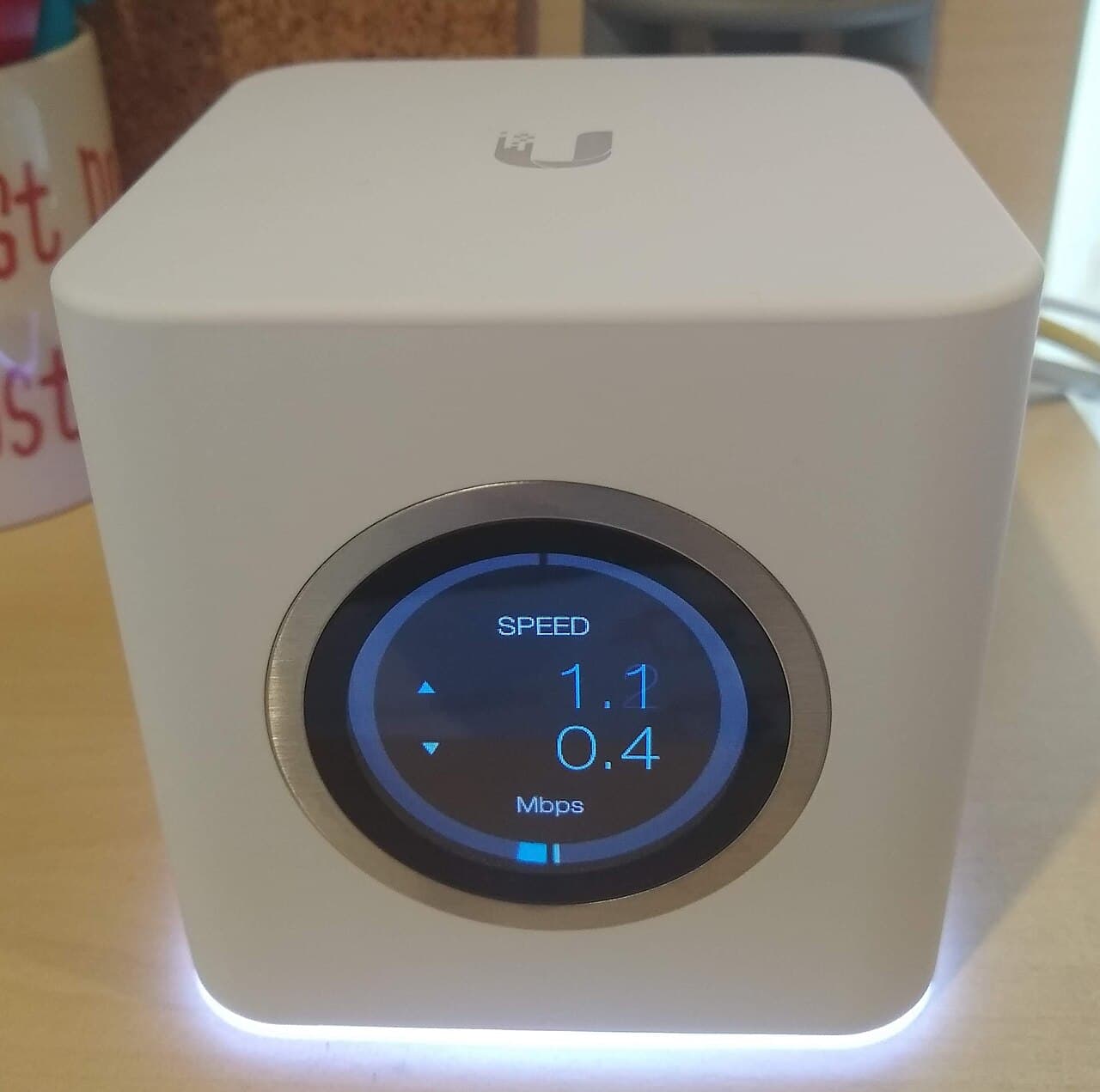
Run a speed test on a device standing next to the router, then again in the slow spot. If it's slow at the router, your problem is the plan, the modem, or the provider — no Wi-Fi gear will help. If it's fast near the router and slow in the back bedroom, you have a coverage problem, and placement is the first fix.
Placement fixes more than purchases
Routers belong central, elevated, and in the open — not in the entryway cabinet where the installer left it, not behind the TV, not next to the microwave or a fish tank. Moving a router from a far corner to the middle of the home is regularly worth more than a hardware upgrade, and it costs a longer cable.
Then the ten-minute tune-up
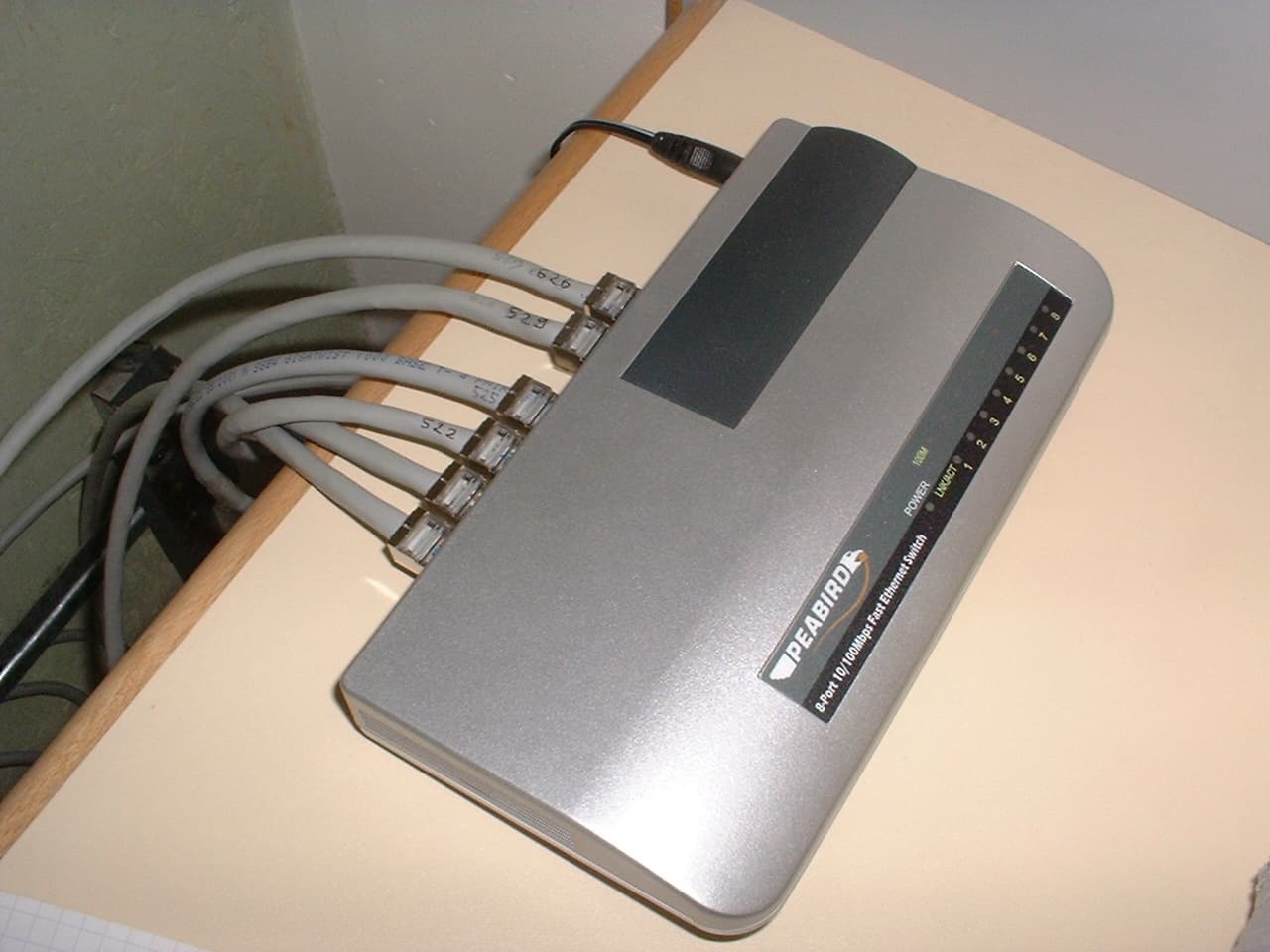
Reboot the modem and router (genuinely fixes degraded sessions), check for router firmware updates, and look at what's on the network — a forgotten device uploading backups can consume an upload link. If a specific room still lags afterward, that's when hardware spending is justified: a mesh node or wired access point pointed exactly at the problem.
- Speed-test beside the router vs. the slow room — it splits plan problems from coverage problems
- Re-place the router: central, high, in the open
- Reboot modem and router; update firmware
- Buy hardware only for a confirmed coverage gap — see our mesh vs. router comparison
Rohan Mehta
Senior Reviewer, Laptops & Networking
Rohan covers laptops, PCs, and home networking, focusing on the specs that change real-world performance rather than the ones that pad a spec sheet.
Reviewed against our editorial standards